How Does MQTT Work With an ESP32 Smart Control Panel?
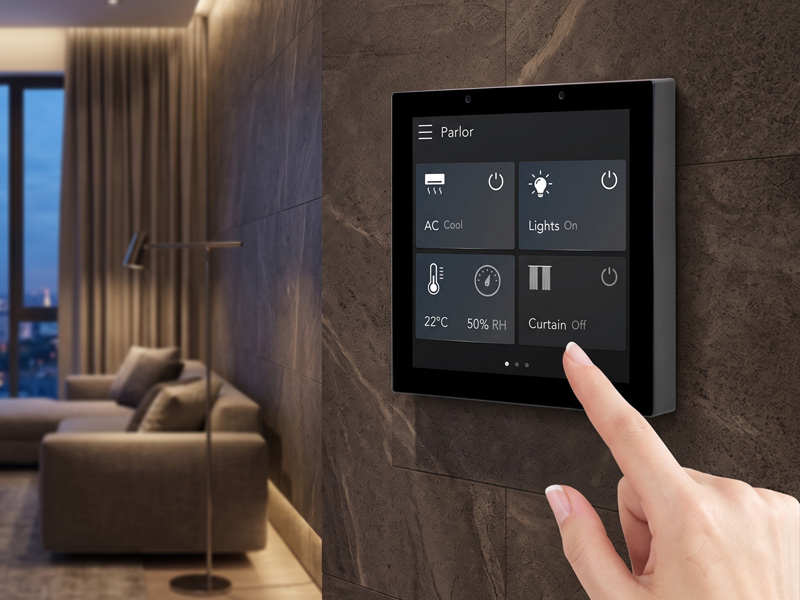
Smart home systems require dependable communication to exchange commands and status updates. A touchscreen control panel might switch lights, regulate air conditioning, open curtains, and show sensor readings. When these functions span devices made by different manufacturers, a flexible communication approach is particularly valuable.
MQTT is a lightweight messaging protocol commonly used in IoT systems. Paired with an ESP32-based smart control panel, it offers a practical way to send commands, receive device updates, and link embedded hardware with smart home platforms.
For instance, when a user taps a lighting button on an ESP32 touchscreen, the panel can publish an MQTT message. A connected smart home controller receives it and turns on the light. After the light changes state, it can send updated status information back to the panel.
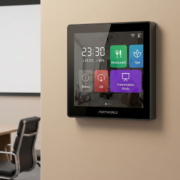
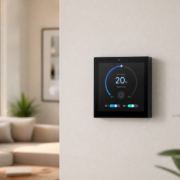
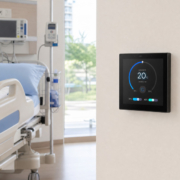
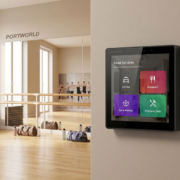
Portworld’s YC-SM43P is one ESP32-S3 touchscreen control panel that can be assessed for this type of application. Its 4-inch display, LVGL interface, Wi-Fi, Bluetooth, and Ethernet and RS485 options provide a hardware foundation for customized IoT control interfaces.
1. What Is MQTT, and Why Is It Used With ESP32?
MQTT, or Message Queuing Telemetry Transport, is a lightweight publish/subscribe messaging protocol that enables connected devices to communicate over TCP/IP networks.
Rather than sending data directly from one device to another, as with traditional communication methods, MQTT relies on a central component called a broker to manage message delivery.
The protocol has three main components:
- Publisher: A device or application that sends messages.
- Subscriber: A device or application that receives messages.
- Broker: A server that receives published messages and forwards them to subscribers according to their topic subscriptions.
- An ESP32 smart control panel can function as both a publisher and a subscriber.
For instance, when a user presses a touchscreen button, the ESP32 publishes a command to an MQTT topic. It can also subscribe to a different topic to receive the device’s latest status.
MQTT is suitable for embedded IoT applications because it has a lightweight messaging structure and supports different Quality of Service (QoS) levels. Espressif’s ESP-MQTT component also supports authentication, TLS connections, WebSocket transport, and MQTT
2. How Does MQTT Communication Work With an ESP32 Control Panel?
A typical MQTT-enabled smart home system consists of an ESP32 touchscreen panel, an MQTT broker, a smart home platform, and connected devices.
Communication takes place in several steps.
Step 1: Connect the ESP32 to the Network
Depending on its hardware configuration, the ESP32 control panel connects to the local network over Wi-Fi or Ethernet.
It then connects to the MQTT broker using the broker’s IP address or hostname, port number, and authentication credentials.

4″ Smart Control Panel
Step 2: Connect to the MQTT Broker
The MQTT broker serves as a central message distributor. It receives messages from connected devices and forwards them to clients subscribed to the relevant topics.
For example, a local smart home system might use a Mosquitto broker.
Step 3: Publish Commands From the Touchscreen
When a user taps a button on the control panel, the ESP32 application publishes a message to a predefined topic.
For example:
home/living_room/light/set
Message payload:
ON
The broker receives the message and forwards it to the subscribed smart home controller or device.
Step 4: Receive Device Status
After the light switches on, the smart home system publishes its updated status:
home/living_room/light/state
Message payload:
ON
The ESP32 panel subscribes to this topic and updates the touchscreen interface.
Step 5: Update the LVGL Interface
The embedded application processes the received MQTT message and updates the corresponding LVGL component.
The lighting button can change its appearance to indicate that the light is on. The same method can be used for curtain position, air conditioning mode, temperature readings, and other device information.
This two-way communication is important. A control panel should not only send commands; it should also receive feedback so that the displayed information reflects the actual device state.
3. Understanding MQTT Topics and Message Structure
MQTT topics organize messages into a structured naming system. A well-designed topic structure makes it easier to manage multiple rooms and devices.
For an ESP32 smart home control panel, a topic structure might look like this:
| Function | MQTT Topic | Example Payload |
|---|---|---|
| Light command | home/living_room/light/set |
ON |
| Light status | home/living_room/light/state |
ON |
| Curtain command | home/living_room/curtain/set |
OPEN |
| Curtain status | home/living_room/curtain/state |
50 |
| Temperature | home/living_room/temperature |
25.5 |
| Panel status | home/panel/status |
online |
These are example topics and payloads. The actual structure depends on the application and the smart home platform.
For more complex applications, JSON payloads can carry several parameters in one message.
For example:
{
  "power": "ON",
  "brightness": 80,
  "color_temperature": 4000
}
This message could represent a lighting command containing power, brightness, and color temperature.
The panel application parses the received JSON data and updates the relevant controls.
For commercial projects, it is worth defining a consistent topic naming convention from the beginning. This makes it easier to add more devices, rooms, and control panels later.
smart home control panel-1
4. Connecting an ESP32 Smart Control Panel to an MQTT Broker
After defining the communication architecture, configure the ESP32 application.
For ESP32-S3 development, Espressif provides the ESP-MQTT component within ESP-IDF. It enables the device to connect to brokers, publish messages, subscribe to topics, and process connection events.
A typical development process involves the following steps.
Step 1: Configure Wi-Fi or Ethernet
Connect the ESP32 to the local network, then confirm that it can reach the MQTT broker.
For a commercial wall-mounted control panel, Ethernet or PoE may be preferable when supported, as a wired connection can deliver more consistent network performance.
Step 2: Configure the MQTT Client
In the application, specify the broker address, port, username, and password.
Common MQTT connection examples include:
TCP: port 1883
TLS-encrypted MQTT: typically port 8883
The appropriate port depends on the broker’s configuration.
For production applications, use authentication and verify TLS certificates when supported instead of relying on an unauthenticated connection.
Step 3: Subscribe to Device Status Topics
Once connected to the broker, the ESP32 subscribes to the topics it must monitor.
For example:
esp_mqtt_client_subscribe(
client,
“home/living_room/light/state”,
1
);
This enables the panel to receive lighting status messages.
Step 4: Publish Touchscreen Commands
When the user activates a control, the application publishes the corresponding command.
For example:
esp_mqtt_client_publish(
    client,
    "home/living_room/light/set",
    "ON",
    0,
    1,
    0
);
The application should connect this operation to the relevant touchscreen event rather than publishing commands continuously.
Step 5: Handle Incoming Messages
The MQTT event handler receives messages and forwards their data to the application.
The application identifies each message’s topic, processes its payload, and updates the relevant LVGL interface component.
Step 6: Verify Reconnection and Status Reporting
Network outages may occur in real-world installations. The application should detect when the connection is lost, reconnect to the broker, and resubscribe to the necessary topics.
It should also publish its availability status, enabling the smart home platform to determine whether the control panel is online.
These examples demonstrate the basic ESP-IDF workflow. A complete implementation must also account for event handling, memory management, error handling, and proper synchronization between MQTT tasks and LVGL interface updates.
smart home control panel
5. Integrating MQTT With LVGL on an ESP32 Touchscreen
In an ESP32-based smart control panel, MQTT manages communication, while LVGL handles the graphical user interface.
- Each component serves a distinct purpose.
- MQTT: Sends commands and receives device data.
- LVGL: Shows buttons, icons, labels, sliders, and other touchscreen elements.
- ESP32 application: Links user actions to MQTT messages and updates the interface when new data arrives.
- Consider a lighting control screen.
The LVGL interface presents a power button and a brightness slider. When the user taps the button, the application publishes an MQTT command. After the smart home system reports the updated status, the application refreshes the button.
A temperature display operates similarly. The ESP32 subscribes to a temperature topic, receives an updated reading, and refreshes the corresponding LVGL label.
A basic interface could include:
- Lighting on/off controls
- Brightness adjustment
- Curtain open/close controls
- Indoor temperature and humidity
- Air conditioning settings
- Smart home scene buttons
For a smooth user experience, MQTT event processing should be separated from time-sensitive display operations. Incoming messages can be passed to the LVGL task through a suitable queue or event mechanism, allowing the interface to update safely without blocking the graphics task.
This architecture is useful for developing customized smart home interfaces without requiring a full Android operating system.
6. Using MQTT with Home Assistant
MQTT can also link an ESP32 smart control panel with Home Assistant, a popular open-source home automation platform.
In this setup, Home Assistant manages connected devices and automation logic, while the ESP32 panel serves as the physical touchscreen interface.
A typical system is structured as follows:
ESP32 Smart Control Panel ↔ MQTT Broker ↔ Home Assistant ↔ Smart Home Devices
To configure this architecture:
- Install an MQTT broker, such as Mosquitto.
- Add the MQTT integration to Home Assistant.
- Configure the ESP32 panel with the broker’s connection details.
- Set up command and status topics.
- Configure MQTT entities in Home Assistant or enable MQTT discovery.
- Test command publishing and status feedback.
Home Assistant supports MQTT discovery, enabling compatible MQTT devices to create entities automatically when they publish correctly formatted discovery messages. Devices can also be configured manually.
For instance, an ESP32 panel can send a lighting command, which Home Assistant processes to control the relevant smart light. The resulting status is then published over MQTT, allowing the panel to update its display.
This setup suits projects that require a tailored touchscreen interface while keeping Home Assistant as the central automation platform.
7. Which Smart Home Devices Can an ESP32 MQTT Panel Control?
MQTT does not directly control every smart home device. The device, gateway, or automation platform must support MQTT or offer a compatible integration.
When configured appropriately, an ESP32 control panel can operate a range of smart home functions.
Smart Lighting
Users can turn lights on or off, change brightness, and choose lighting scenes. The panel sends commands via MQTT and receives status updates.
Motorized Curtains
The interface can offer open, close, and position controls. It can also display position feedback if the connected curtain system provides it.
HVAC Systems
The panel can send temperature settings and operating-mode commands to compatible HVAC controllers or gateways.
Temperature and Humidity Sensors
Sensor data can be published to MQTT topics and shown on the touchscreen as it is received.
Smart Home Scenes
Pressing a single touchscreen button can activate a scene through Home Assistant or another automation platform. For instance, a “Leaving Home” scene could switch off selected lights, close the curtains, and run security automations.
Zigbee and Bluetooth Devices
An ESP32 MQTT panel cannot automatically communicate with all Zigbee or Bluetooth devices. These devices generally need a compatible gateway, bridge, or integration to make their functions available through MQTT or Home Assistant.
This distinction matters when planning a smart home product. MQTT provides a messaging link, but the required device integrations and automation logic must still be implemented.
8. Key MQTT Settings for Dependable Smart Home Control
A functioning prototype is not automatically ready for sustained commercial use. During development, it is important to account for several MQTT settings and software behaviors.
Quality of Service (QoS)
MQTT offers three QoS levels:
- QoS 0: The broker attempts to deliver the message but does not acknowledge it.
- QoS 1: Delivery is acknowledged, though the message may arrive more than once.
- QoS 2: The protocol uses a more involved exchange to ensure exactly-once delivery.
For many smart home applications, QoS 0 or QoS 1 is suitable, depending on the message’s importance. Design critical commands to handle duplicates and verify application-level state.
Retained Messages
With retained messages, the broker stores the most recent retained value for a topic and sends it to new subscribers. This enables a newly connected control panel to receive the latest device status without having to wait for another update.
Last Will and Testament
MQTT’s Last Will and Testament feature lets the broker publish a predefined message if a client disconnects unexpectedly. A smart home platform can use this feature to detect when a control panel goes offline.
Reconnection
The ESP32 application should detect connection loss and reconnect automatically. After reconnecting, it should restore its required subscriptions and synchronize the current device states.
Security
Use unique credentials, restrict broker access, and enable TLS where appropriate. Avoid exposing an unsecured MQTT broker directly to the public internet.
Espressif’s ESP-MQTT documentation describes TLS configuration, QoS handling, connection events, and Last Will settings.
Smart Home Touch Control Panel
9. Portworld YC-SM43P: An ESP32-S3 Platform for MQTT Smart Home Applications
Companies building MQTT-based smart home interfaces should assess hardware based on both processing capacity and the communication interfaces it provides.
Portworld’s YC-SM43P is a 4-inch touchscreen control panel built on the ESP32-S3 platform. It is intended for embedded touchscreen applications that use LVGL to develop graphical interfaces.
Its key specifications include:
- ESP32-S3 dual-core processor operating at up to 240 MHz
- 4-inch capacitive touchscreen
- 480 × 480 display resolution
- 8MB of PSRAM and 16MB of Flash
- Support for LVGL graphical interfaces
- Wi-Fi and Bluetooth 5
- Ethernet and PoE options
- RS485 interface
- FreeRTOS-based embedded software environment
Combining an ESP32-S3, LVGL, and network connectivity makes the YC-SM43P a potential hardware platform for custom MQTT-based smart home control applications.
For instance, a manufacturer could create an LVGL interface for controlling lights and curtains, monitoring temperature, and activating scenes. The embedded application could then communicate via MQTT with a local broker or smart home platform.
Portworld also offers customization options for embedded control panel projects, including:
- Hardware and PCBA customization
- Custom LVGL interface development
- ESP32 firmware and application integration
- RS485 and other peripheral integration
- Customization of logos, models, and product appearance
- SDK and development documentation support
- OEM/ODM manufacturing services
The MQTT features, broker configuration, topic structure, and Home Assistant integration required for a specific application must be implemented and tested. MQTT is not preinstalled or automatically enabled solely because the panel supports Wi-Fi or Ethernet.
MQTT offers a flexible way to connect an ESP32 smart control panel with smart home devices and automation platforms.
When users interact with the touchscreen, the ESP32 publishes commands and subscribes to topics for device status updates. MQTT brokers route these messages, and platforms such as Home Assistant can manage connected devices and automation logic.
Paired with LVGL, this architecture enables developers to create responsive touchscreen interfaces for lighting, curtains, HVAC, sensors, and other smart home functions.
Portworld’s YC-SM43P provides an ESP32-S3-based hardware platform for building customized interfaces. Combined with Portworld’s firmware, UI/UX, hardware, and OEM/ODM customization services, it offers smart home brands and IoT developers a foundation for creating their own MQTT-enabled control panels.