Meeting Room Booking Displays for Small Offices: A Selection Guide
In a small office, meeting room management should be simple. Employees need to see which rooms are free, prevent scheduling conflicts, and book a space without disrupting their work. Yet when several teams share only a handful of rooms, even a basic reservation process can become inefficient.
A meeting room booking display addresses this challenge by presenting availability and schedules on a screen outside each room. Depending on the software and hardware, employees may also be able to book a room, check in, or extend a reservation directly from the display.
Unlike large organizations with dedicated IT teams and complex workplace management systems, small offices typically need a solution that is affordable, easy to install and manage, and compatible with their existing calendar platform.
Choosing the right display involves more than selecting a screen size. Businesses should also assess software compatibility, touchscreen features, power requirements, network connectivity, mounting options, and ongoing maintenance.
1. Why Small Offices Benefit from Meeting Room Booking Displays
In a small office, meeting rooms are commonly shared among departments, project teams, and visiting clients. Employees may use calendars, spreadsheets, messaging apps, or informal agreements to book these spaces.
As meetings become more frequent, this approach can lead to several challenges:
- Employees may struggle to see whether a room is available.
- More than one person may book the same room.
- A room may appear occupied on the calendar even when it is empty.
- Staff may spend time checking availability or asking colleagues about schedules.
- Visitors and employees may find it difficult to locate the right meeting space.
- A booking display presents room information where employees need it.
A typical display can show the room name, current availability, details of an ongoing meeting, and upcoming reservations. Depending on the connected application, interactive models may also allow users to book a room or check in directly on the screen.
For a small business, the key benefit is not merely adding another screen to the office. It is making the existing room-booking process easier to understand and manage.
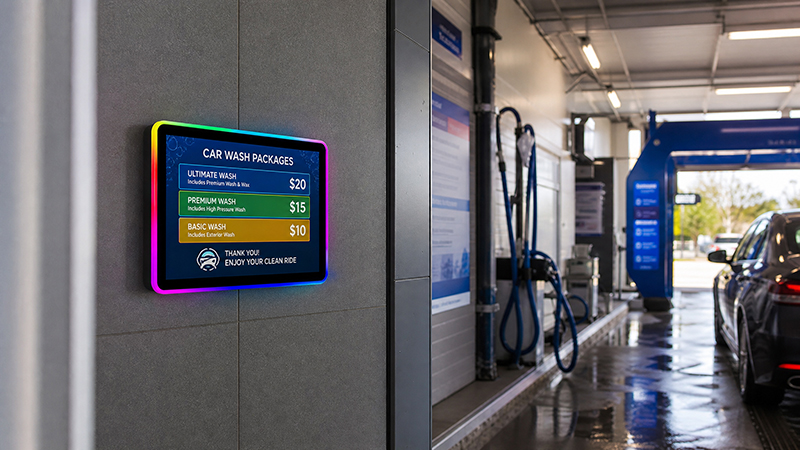
meeting room display panel
2. Choose Between a Room Status Display and an Interactive Booking Panel
The first decision is determining how employees will use the display. A fully interactive touchscreen is not necessary for every small office.
Room status and schedule display
A basic room status display shows information from the office booking system. Employees can check whether a room is available, see when the next meeting begins, and review the room’s schedule for the day.
This setup works well for offices that already use Microsoft Outlook, Google Calendar, or another platform to book meeting rooms.
Its advantages include:
- Lower hardware and deployment complexity
- A straightforward presentation of information
- Reduced need for interaction
- Clear visibility outside the meeting room
- Compatibility with established office booking procedures
If employees already reserve rooms using their computers or phones, a non-interactive display may be all they need.
Interactive touchscreen booking display
An interactive booking display enables employees to use the room-booking application directly on the screen.
Depending on the software, users may be able to:
- Reserve an available room immediately
- Check in to an existing reservation
- Extend a meeting if the room remains available
- View upcoming room schedules
- Release a reservation when a meeting ends early
This option is useful for employees who often need to arrange brief meetings or reserve rooms at short notice.
However, a touchscreen alone does not guarantee access to these features. The device must be connected to a compatible booking application and calendar, with the necessary permissions in place. The software—not merely the display hardware—must support the entire workflow.
For small offices with just one or two meeting rooms, a basic status display may be sufficient. Businesses that frequently host walk-in meetings may gain more from interactive booking.
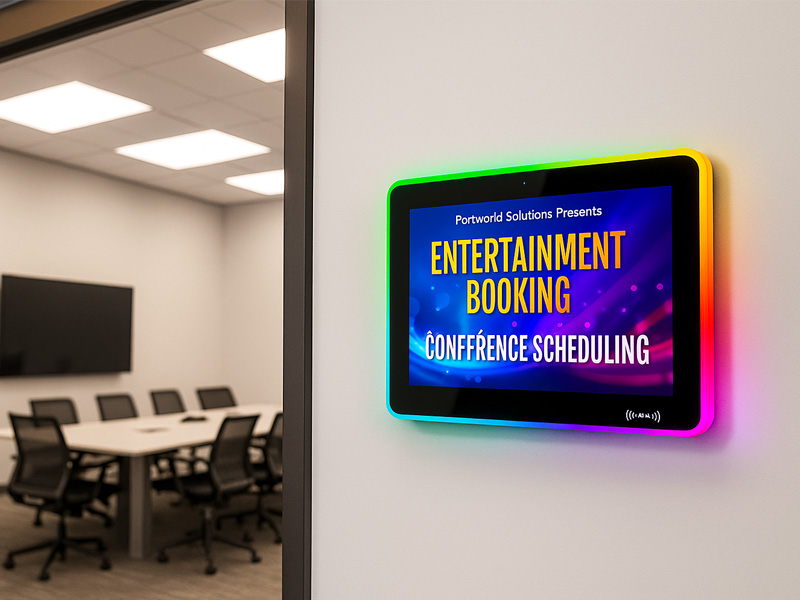
YC-LE156
15.6″ Meeting Room Display Panels
3. Choose a Screen Size That Fits the Office Layout
Meeting room booking displays are typically mounted next to the room entrance, so they do not need to match the size of the main presentation screen inside the room.
The most suitable screen size depends on the viewing distance, available wall space, the volume of information shown, and whether employees will interact with the display.
Compact displays for small meeting rooms
A compact screen can present the room name, availability, and the next scheduled meeting while using minimal wall space.
Smaller screens work well for:
- Small private meeting rooms
- Individual discussion rooms
- Small offices with limited wall space
- Corridors where several room entrances are close together
- Larger displays for interactive booking
A larger touchscreen offers more space for schedules, booking controls, and other interface elements.
It can be more convenient when employees need to browse available time slots or use multiple functions directly on the panel.
| Screen size | Suitable applications |
|---|---|
| 4–5 inches | Basic room status and compact information panels |
| 7–8 inches | Room schedules and simple touch interactions |
| 10.1 inches | Interactive booking, check-in, and schedule viewing |
| 13.3 inches or larger | Larger meeting spaces or more detailed information interfaces |
These recommendations are general planning guidance, not fixed size requirements. Test the final choice with the actual booking interface.
For many small offices, a display between 7 and 10.1 inches provides a practical balance of readability, interaction space, and installation footprint.
4. Evaluate Display Quality and Touchscreen Performance
Room booking displays are typically viewed from a short distance, but they should remain legible in a range of office lighting conditions.
When comparing display specifications, consider these factors.
Resolution
The resolution should support clear text, icons, and schedule information.
Higher resolution can make text sharper, especially on larger screens, but choose a resolution that suits the screen size and application requirements.
Brightness
Meeting room displays are usually installed indoors, so exceptionally high brightness is rarely needed.
A screen with brightness suited to office lighting can remain easy to see while avoiding unnecessary power use and uncomfortable glare.
Viewing angle
Employees should be able to view room availability as they approach from various directions. A display with an appropriate viewing angle keeps schedule details legible from the corridor.
Touchscreen technology
Capacitive touchscreens are commonly used in interactive panels, offering responsive multi-touch functionality and compatibility with modern user interfaces.
The touch controller, cover glass, display panel, and operating system must function well together. Test touch performance using the actual booking application, especially if its interface includes small buttons or multiple scheduling controls.
A basic room-status display may not require touchscreen functionality. Choosing a non-touch model can help avoid unnecessary hardware costs.
5. Ensure the Display Is Compatible with Your Existing Calendar System
Software compatibility is a key factor when choosing meeting room booking displays.
Even a display with a high-quality screen and dependable built-in hardware cannot manage room reservations effectively unless it can access the necessary scheduling data.
Small offices often rely on cloud-based calendar services or workplace collaboration platforms. Before choosing a device, determine which calendar system employees already use.
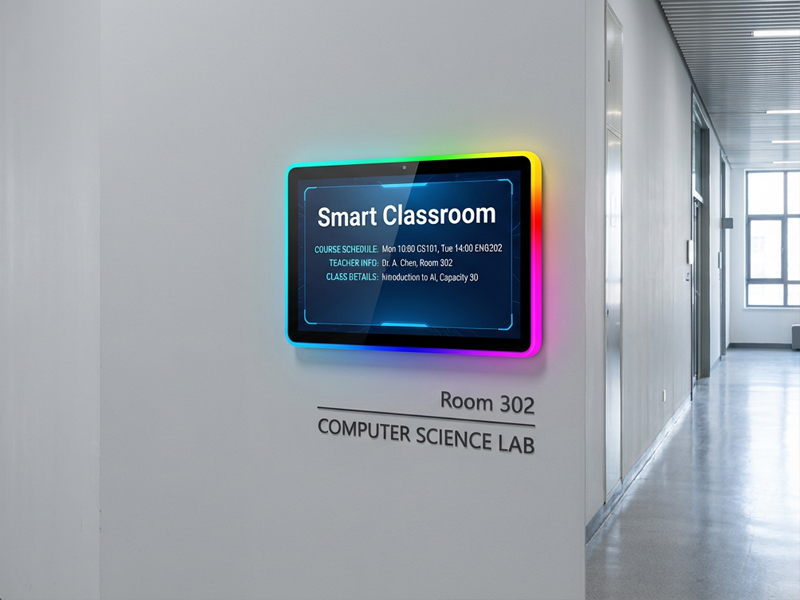
YC-LE156
15.6″ Meeting Room Display Panels
Microsoft 365 and Outlook
Organizations using Microsoft 365 may schedule meeting rooms through room resources and calendar permissions.
The chosen booking application must access the relevant room calendars and present reservation details accurately.
Google Workspace
Offices using Google Workspace should verify that the scheduling application supports the necessary calendar and room-resource integrations.
Integration may require administrator approval and room-resource configuration.
Other Booking Platforms
Some businesses rely on third-party room-scheduling applications or custom workplace management systems.
In these situations, verify that the software works with the intended Android or Linux device, offers browser-based access, or provides a dedicated application.
Confirm calendar compatibility within the application itself. An Android display does not inherently support every Microsoft 365, Google Workspace, or third-party booking service. API availability, authentication, licensing, and device compatibility can all influence deployment.
For small offices, connecting the display to an existing booking platform is generally more cost-effective than building an entirely separate scheduling system.
6. Select an Appropriate Operating System and Hardware Configuration
The operating system and embedded hardware affect which applications a display can run and how reliably it performs.
In a small office, the hardware should meet the booking application’s requirements without adding unnecessary expense.
Android Meeting Room Displays
Android is a practical choice for embedded room-booking displays, offering support for dedicated applications, customized interfaces, and various network and peripheral connections.
Depending on the application, an Android panel may support:
- Room availability interfaces
- Daily and weekly schedules
- Touch-based booking applications
- Web-based calendar interfaces
- Remote device management
- Automatic application startup
A relatively modest processor may be adequate for a basic room schedule. Interactive interfaces, background services, and additional applications may require more memory and processing power.
Linux-based displays
Linux may suit projects that use customized applications, browser-based interfaces, or dedicated embedded software environments.
It can provide manufacturers and software developers with the flexibility to create a purpose-built room scheduling solution.
Windows-based systems
Windows may be a suitable choice when a business needs to run an existing Windows application or connect with a specialized software environment.
However, a Windows-based solution may require a different budget for hardware and licensing.
For most small offices, the operating system should be chosen according to the booking software, rather than processor specifications alone.
7. Consider PoE to Simplify Installation
When installing displays outside meeting rooms, power and network access are important practical factors.
A conventional setup may need separate Ethernet and power connections. This can add cable clutter, particularly when multiple rooms are arranged along one corridor.
Power over Ethernet (PoE) delivers network connectivity and electrical power through a compatible Ethernet cable.
For small offices, PoE may provide several benefits:
- Fewer cables near the display
- Neater wall installations
- Centralized power distribution
- Convenient network access
- Simpler deployment across multiple rooms
PoE compatibility depends on the specific hardware. Before purchasing, verify the supported PoE standard, power requirements, cable specifications, and compatibility with the network switch. A PoE-enabled display also needs an appropriate PoE switch or injector.
If PoE is not available, a display with a DC power input may be a better choice. Plan for the power source before selecting the display configuration.
For an office with just one meeting room, a standard DC adapter may be adequate. When installing displays in several rooms, PoE can simplify cable management and centralized power planning.
8. Look for Remote Management and Automatic Recovery
A meeting room display should work reliably without employees needing to restart it or update its content manually.
For small businesses without dedicated IT staff, remote management can reduce routine maintenance.
Useful features include:
Automatic startup: The booking application should open automatically when the device restarts or power is restored.
Remote updates: Administrators should be able to update applications, system settings, and display content without visiting each room.
Device monitoring: Remote monitoring can help detect network outages or application failures.
Kiosk mode: The display can be limited to the designated booking application, preventing users from accidentally opening unrelated settings or apps.
Recovery after network interruptions: The application should have a clear response when the network or calendar service is temporarily unavailable.
Pay particular attention to offline behavior. A disconnected display should not show outdated room availability as though it were current. The interface should clearly indicate when schedule information cannot be refreshed.
For a small office, a straightforward, dependable management process is often more valuable than a lengthy list of advanced features.
digital signage display-1
Meeting Room Display Solutions from Portworld
For businesses and system integrators creating custom meeting room booking displays, Portworld offers embedded touchscreen hardware along with OEM and ODM customization options.
Portworld’s meeting room display lineup includes models such as YC-LE101T, YC-LE101, YC-D101T, YC-D140T, YC-LE156, and YC-D156T. These product families offer choices for various screen sizes and installation needs. Confirm the exact specifications and available configurations for the model you select.
Based on project requirements, Portworld can support customization of:
- Display size and touchscreen configuration
- Embedded motherboard and processor selection
- Android or Linux operating system configuration
- Wi-Fi, Ethernet, and PoE options, where supported
- Custom user interfaces and branding
- Application preinstallation and automatic startup
- Enclosure, mounting, and appearance
- SDKs and technical documentation for software development
For smaller offices, a compact touchscreen featuring a customized room-availability interface may be adequate. Businesses requiring direct booking or check-in can integrate the chosen display hardware with their preferred scheduling application.
The display hardware should be distinguished from the booking software. Portworld’s embedded display serves as the platform for running an application; calendar synchronization, booking permissions, and room management features depend on the software and integrations chosen for the project.
For OEM and ODM projects, defining the software environment, number of rooms, screen size, mounting method, and network requirements early can help identify the most suitable hardware configuration.