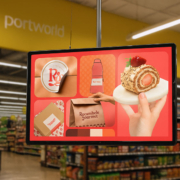
How to Set Up an Android Digital Signage Display
Android digital signage displays facilitate the presentation of advertising, promotional videos, menus, announcements, and other visual content for businesses, eliminating the need for the continuous printing and replacement of traditional signs.
These displays, which utilize the Android operating system, provide a versatile solution for managing digital content in various commercial settings, including retail stores, restaurants, hotels, offices, and shopping centers.
However, the process of setting up an Android digital signage display extends beyond merely connecting the power cable and powering on the screen. Businesses must configure the network, install the necessary signage application, prepare the content, and ensure that the display functions reliably within its designated environment.
For organizations implementing multiple screens or creating tailored advertising systems, both hardware configuration and software compatibility are crucial considerations. This guide outlines the steps for setting up an Android digital signage display, covering everything from the initial installation to content management and ongoing operation.
1. Select the Appropriate Android Digital Signage Display
Prior to commencing the installation, ensure that the display aligns with the specifications of your project. Factors such as screen size, resolution, brightness, computing capabilities, connectivity options, and mounting techniques all play a crucial role in the system’s performance.
For instance, a smaller display might be ideal for information panels or retail promotions, whereas a larger screen could be better suited for hotel lobbies, shopping centers, and commercial advertising. Interactive applications may necessitate touchscreen capabilities, while a display dedicated solely to video playback may not require touch functionality.
The embedded hardware is also significant. The processor, RAM, internal storage, and Android version must be compatible with the digital signage software you plan to utilize.
Portworld provides digital signage displays and embedded hardware solutions tailored for commercial use. Their product lineup features advertising displays, touchscreen systems, and bespoke display configurations. For instance, Portworld’s 55-inch floor-standing digital signage display is equipped with a Rockchip RK3566 quad-core processor and runs on Android 11, featuring 2GB of RAM and 16GB of storage in its standard configuration. It also offers support for Wi-Fi, Bluetooth, HDMI output, and optional IR or capacitive touch.
This type of configuration can serve as a foundational reference for assessing hardware requirements for indoor advertising initiatives.
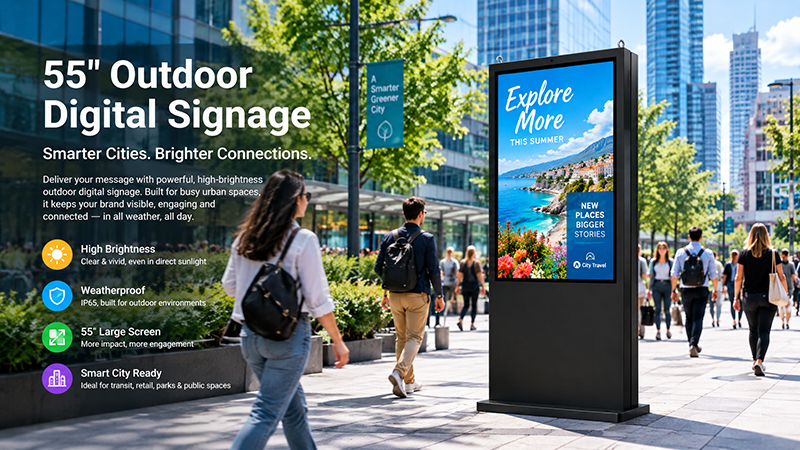
55 inch digital sigange display
2. Install and Power On the Display
After selecting the appropriate display, proceed to install it in the designated location.
Depending on the specific product, installation may require wall mounting, positioning on a stand, integrating into a kiosk, or fitting within custom commercial equipment. Adhere to the manufacturer’s installation guidelines and verify that the mounting structure can adequately support the display.
Prior to powering on the system, ensure the following:
- Verify that the power supply aligns with the display’s specifications.
- Confirm that the mounting structure is both secure and stable.
- Make certain that cables and connectors are accessible for future maintenance.
- Allow sufficient space for ventilation as necessary.
Refrain from placing the display in environments where heat, moisture, or direct sunlight may exceed its specified operating conditions.
Once the power supply is connected, activate the display and permit the Android system to finalize its startup sequence.
The specific startup screen and initial configuration steps will vary based on the device manufacturer and the Android version in use. Certain commercial displays may also feature customized boot screens or pre-installed applications.
For projects utilizing customized Android digital signage hardware, Portworld is available to discuss system configuration and branding options as part of its OEM/ODM services, tailored to the chosen hardware platform and project specifications.
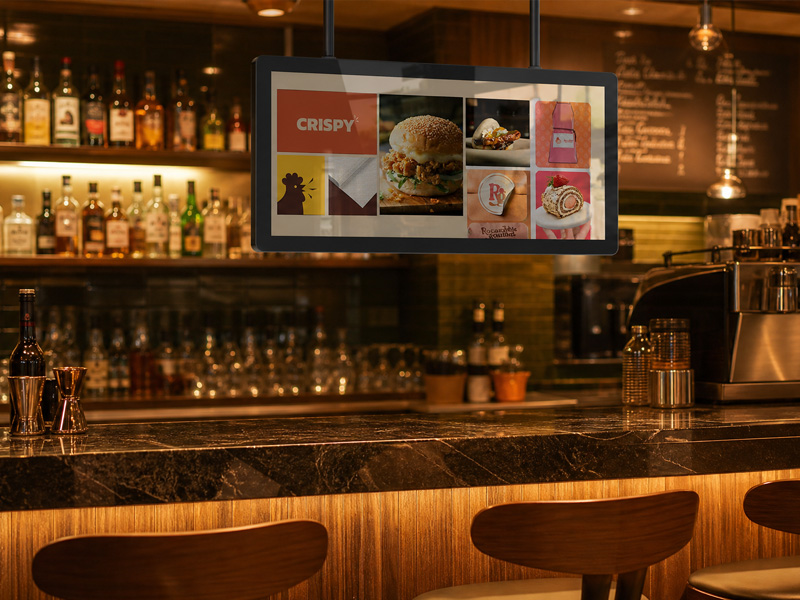
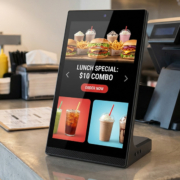
Stretch Bar Monitor
3. Establishing Internet Connectivity for the Display
A network connection is typically necessary when the display is required to download content, interact with a cloud-based content management system, or receive updates remotely.
Android digital signage displays generally utilize either Wi-Fi or Ethernet, based on the hardware available and the installation context.
Wi-Fi connection: Access the Android settings menu, go to the Wi-Fi settings, choose the relevant network, and input the password.
Ethernet connection: Link the display’s Ethernet port to the network using an appropriate cable. Ensure that the network offers the required connectivity and that the device acquires a valid network configuration.
In business settings, Ethernet is often preferred when a reliable wired connection is accessible. Conversely, Wi-Fi provides enhanced installation flexibility when it is challenging to run network cables.
If the display is to be connected to a corporate network, verify if any additional configurations are necessary, such as proxy settings, firewall permissions, device registration, or access to specific cloud services.
For installations involving multiple displays, consider how the devices will be identified and managed within the network. Standardized network settings can facilitate troubleshooting and ongoing maintenance.
4. Install or Configure Digital Signage Software
Once network connectivity has been established, the subsequent step involves configuring the software responsible for displaying and managing your content.
There are multiple methods to operate an Android digital signage display.
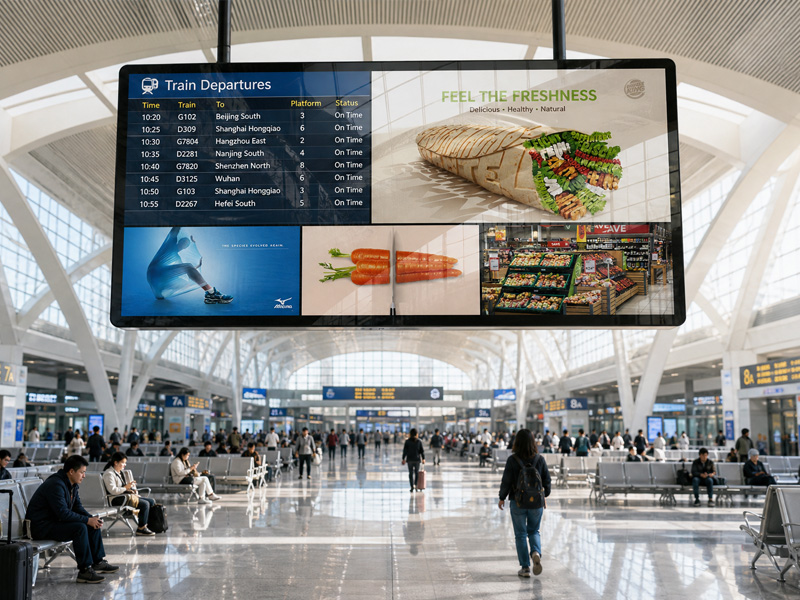
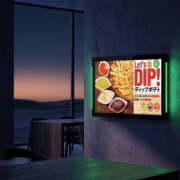
Advertising Digital Signage
Using a Digital Signage Application
A specialized digital signage application can offer functionalities such as playlists, scheduled playback, remote content updates, screen grouping, and device monitoring.
Prior to installing an application, ensure that it is compatible with the display’s Android version and hardware architecture. Additionally, verify whether the application necessitates a subscription, cloud account, license key, or a separate server.
The installation procedure is contingent upon the device’s configuration and the requirements set forth by the software provider. Applications may be installed via an authorized app store, an approved APK installation method, or through a manufacturer’s preinstallation service.
If the display is intended for commercial use, it is essential to confirm that the application can automatically launch upon startup and recover appropriately following a power interruption.
A content management system (CMS) enables businesses to manage the content displayed on their screens and the timing of its appearance.
Depending on the specific software, administrators may have the capability to upload videos, arrange images, create playlists, schedule campaigns, and distribute content to various displays from a centralized interface.
For instance, a retail chain could utilize a CMS to launch a weekend promotion across multiple stores while keeping distinct schedules for each individual location.
Prior to choosing a CMS, it is essential to verify its compatibility with Android devices, the media formats it supports, its remote management features, and its licensing stipulations.
Portworld offers Android-based digital signage hardware and embedded system solutions that can be assessed for compatibility with software tailored to specific projects. For implementations that involve a proprietary CMS or a customized application, it is crucial to confirm software requirements before selecting hardware and proceeding with mass production.
5. Upload and Organize Your Advertising Content
Once the signage software is set up, prepare the content intended for display on the screen.
Common types of content include:
- Promotional images and product advertisements.
- Marketing videos and brand campaigns.
- Digital menus and price lists.
- Corporate announcements and event information.
- Wayfinding instructions and public information.
Verify the supported file formats, video resolutions, frame rates, and maximum file sizes as specified by your signage software. Large video files and high-resolution media can impose additional demands on the device’s processor, memory, and storage.
To ensure the best viewing experience, create content that aligns with the display’s native resolution and orientation. Refrain from using low-resolution images that may appear blurry when enlarged.
Text should be legible from the anticipated viewing distance, while crucial messages must remain visible long enough for viewers to comprehend them. Maintain simple layouts and avoid placing vital information too close to the edges of the screen.
For instance, a restaurant’s playlist might feature menu highlights, limited-time offers, and promotional videos. A hotel lobby display could cycle through welcome messages, event schedules, and service information.
Organizing content into clearly labeled playlists and folders facilitates future updates, particularly when multiple displays utilize the same campaign materials.
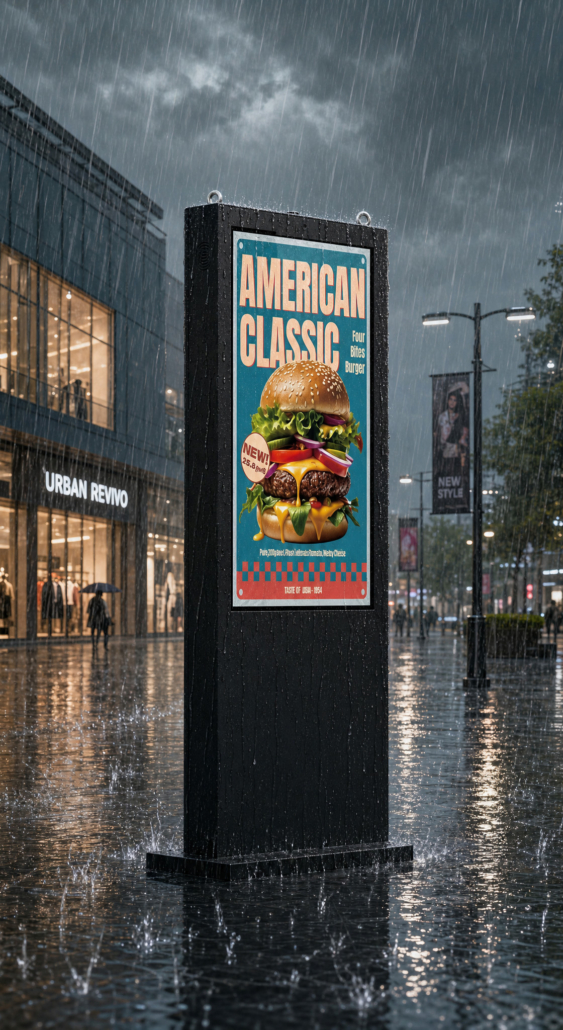
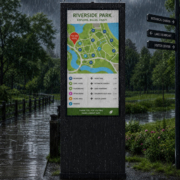
55″ Outside Floor Standing Digital Signage
6. Set Up Playback Schedules and Automatic Startup
In commercial settings, digital signage must be capable of presenting the appropriate content at the right times with minimal manual effort.
If your software allows for scheduling, arrange playlists based on business hours, marketing campaigns, or audience needs. For instance, a retail display may feature morning promotions and showcase different offers in the evening.
Subsequently, verify if the application can initiate automatically upon device startup. Depending on the Android version, application permissions, and device settings, enabling automatic startup may necessitate specific software configurations or system-level adjustments.
Additionally, ascertain the system’s response following a power outage or network disruption. It should be configured suitably for the project, including the capability for locally stored content to continue playing when the internet connection is lost.
For installations that are unattended, conduct a thorough test of the entire startup and playback sequence prior to deployment. Ensure that the display resumes its intended operational state after a restart, rather than remaining on a settings screen or needing manual application initiation.
Portworld provides Android system customization for compatible embedded hardware projects. Depending on the chosen platform, project specifications may involve application preinstallation, automatic application launch, tailored boot screens, and other system-level modifications.
These features can be especially advantageous for businesses implementing branded digital signage solutions or setting up displays across various locations.
7. Evaluate Display Performance Prior to Deployment
Before initiating daily operations with the display, it is essential to assess the entire system under realistic conditions.
Begin by verifying image quality, video playback, audio output if applicable, and touchscreen responsiveness if the model includes touch capabilities. Ensure that all necessary network connections function as intended.
Next, examine the software functionalities utilized by the project, such as content updates, scheduled playback, remote management, and automatic startup.
In the case of multi-display setups, confirm that each device receives the appropriate content and adheres to the designated schedule. Ensure that screen orientation, brightness, and volume align with the deployment specifications.
Additionally, it is crucial to evaluate the display’s performance over an extended duration. If the device is intended for prolonged use, monitor temperature, playback stability, and the system’s recovery after a restart.
For outdoor or semi-outdoor installations, verify the specific product’s rated operating conditions, brightness levels, and necessary IP protection. Do not presume that an indoor digital signage display is suitable for outdoor applications merely because it can connect to a network or continuously play content.
For tailored projects, prototype testing should occur prior to mass production. This process enables the identification of potential issues related to the display, motherboard, software, interfaces, or enclosure before deploying large quantities.
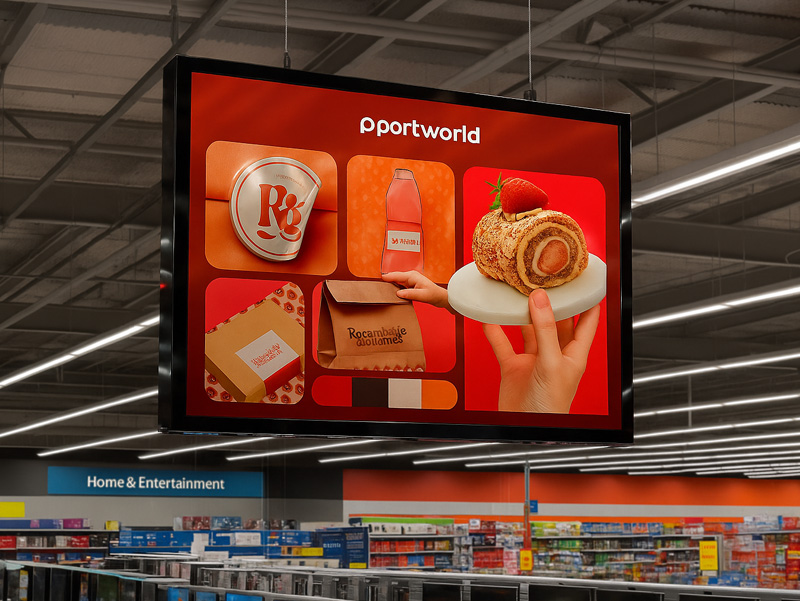
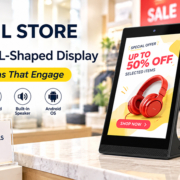
ultra thin hanging advertising screen
When Should You Consider a Customized Android Digital Signage Solution?
A standard Android digital signage display is often sufficient for basic advertising playback. However, a customized solution may be more appropriate when a project requires specific hardware interfaces, a special enclosure, branded software, automatic application startup, or integration with existing equipment.
For example, a retailer may need a particular screen size and mounting structure for an existing fixture. A kiosk manufacturer may require a customized motherboard layout and additional peripheral interfaces. A digital signage brand may need preinstalled software, a branded startup screen, and standardized hardware for bulk production.
Portworld provides digital signage displays, embedded motherboards, and OEM/ODM services for commercial hardware projects. Depending on the application and selected hardware platform, the customization scope can include:
- Display and hardware configuration.
- Embedded motherboard selection and integration.
- Android system adaptation and application preinstallation.
- Branding and customized startup screens.
- Interface and peripheral integration.
- Product configuration and support for sample development and mass production.
The available options depend on the product design and project specifications. If your application requires a specific CMS, automatic startup behavior, remote management function, or specialized interface, provide those requirements before ordering so compatibility can be evaluated early.