What Can a Smart Home Control Panel Actually Do?
n the design of smart home and commercial automation solutions, the Smart Home Control Panel is rapidly replacing traditional scattered switches to become the “command center” of a space.
For designers and system integrators, understanding its capabilities is not just about achieving a high-tech feel, but also about enabling more efficient system integration and purer interior aesthetics.
1. Core Definition: More Than Just a Screen
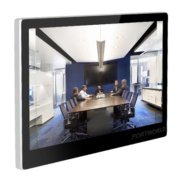
A Smart Home Control Panel is a touch-based interaction terminal (typically 4 to 10.1 inches) mounted on a wall or desktop. It integrates a gateway, protocol conversion, human-machine interaction, and logic processing.
If Home Assistant (HA) is the “brain” of the system, then professional panels like those from Portworld serve as the system’s “face” and “touch,” making complex automation easily accessible.
2. The Four Core Functions of Smart Control Panels
1. Ultimate Whole-Home Device Integration (Centralized Control)
The core value of the panel lies in “normalization.”
- Lighting & Ambiance: Supports dimming and CCT (Correlated Color Temperature), managing hundreds of lights throughout the home from a single screen.
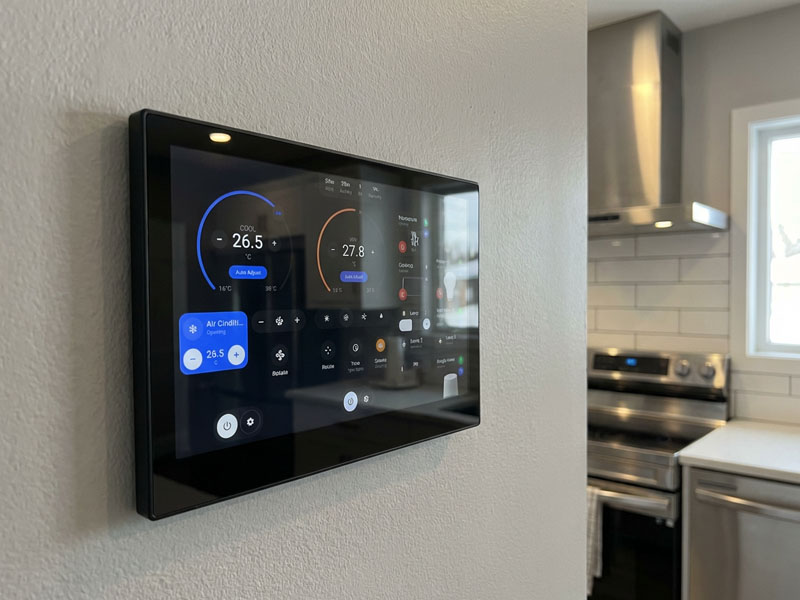
- HVAC Environment: Integrates air conditioning, floor heating, and ventilation systems, while monitoring CO₂ and air quality in real time.
- Shading Systems: Works with curtain motors to achieve precise percentage-based opening control.
- Audio & Entertainment: Links with background music systems (e.g., Sonos) or home theaters.
2. One-Touch Execution of Complex Scenes (Scene Execution)
For designers, the panel can “program” lifestyle scenarios.
- Scene Modes: “Away Mode” turns off all lights and devices and activates security with one tap; “Movie Mode” automatically lowers curtains and dims the lights.
- Logical Automations: Combined with sensors, enables automations such as “light on when someone arrives, off when they leave.”
3. Multi-Protocol Gateway and Interconnectivity (Protocol Integration)
Professional panels (such as Portworld products powered by RK3566/RK3588 chips) typically offer strong protocol compatibility:
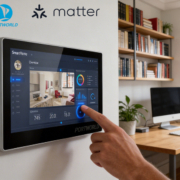
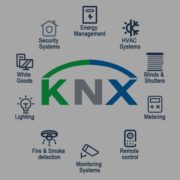
- Wired/Wireless Hybrid: Supports KNX, Zigbee 3.0, Bluetooth Mesh, and even the future Matter standard.
- Two-Way Feedback: Unlike mobile apps, the panel provides real-time device status feedback—you can not only control devices but also directly see whether curtains are fully closed or doors are locked.
4. Advanced Multimedia and Interaction (Advanced UI/UX)
- Streaming Monitoring: View real-time footage from doorbell cameras directly on the panel, with two-way audio support.
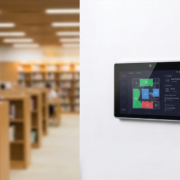
- Customizable Dashboard: Integrated with Home Assistant, it can render 3D floor plans for an intuitive “tap-where-you-want” interaction.
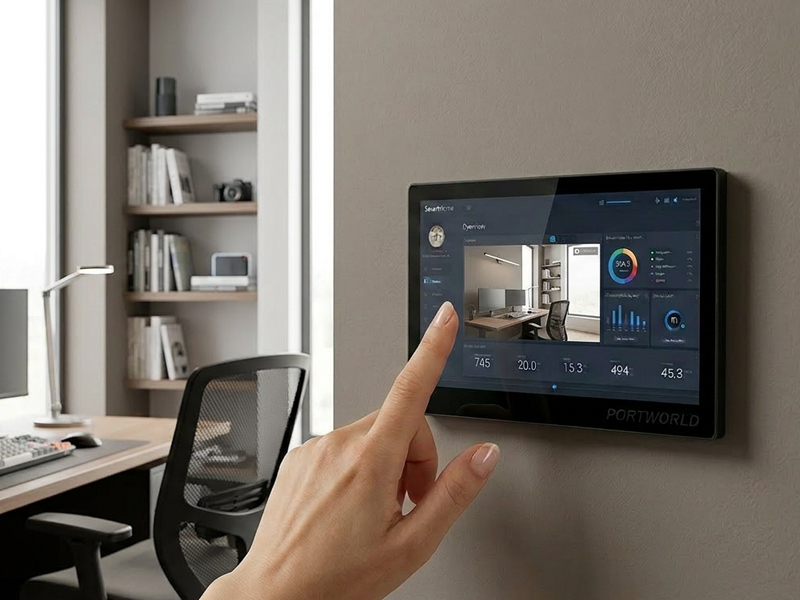
Portworld’s smart home control panels (e.g., YC-SM41P, YC-P5) in integration with devices like Nest Hub, including various mounting options.
smart home control panel-1
1. Embedded Installation (For Wall and Switch Boxes)
- Applicable Products: YC-SM41P, YC-P5, etc.
- Steps:
- Choose Installation Location: Select a location that’s easy to operate and view, such as a wall switch box or a fixed installation area.
- Power and Network Connection: Ensure there is a proper power outlet and network connection. Portworld panels support 48V PoE (Power over Ethernet) and DC 12V input, so choose the appropriate power method.
- Install Base: Use the included mounting base or bracket to securely attach the control panel to the wall or device box.
- Network Setup: Connect the panel to the network via Ethernet or Wi-Fi to ensure communication with the Nest Hub and other smart devices.
- Final Installation: After securing the panel and connecting power and network, proceed with necessary system configuration to ensure compatibility with the Nest Hub.
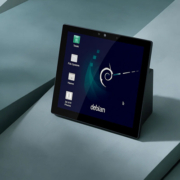
2. Desktop Installation (For Desktops or Countertops)
- Applicable Products: YC-SM41P, YC-P5, etc.
- Steps:
- Choose Installation Location: Place the control panel on a desk or countertop where it can be easily operated and seen.
- Power Connection: Connect the DC power or use PoE Ethernet power (requires PoE switch or adapter).
- Network Setup: Connect to the network via Wi-Fi or wired Ethernet to integrate into your home network.
- Device Setup: Use the touchscreen or companion app for initial setup and testing to ensure the device can control other smart home devices.
smart control panels-1
3. Wall-Mount Installation (For Indoor Walls or Offices)
- Applicable Products: YC-P5, YC-SM41P, etc.
- Steps:
- Select Wall Position: Choose a wall location that allows easy access and clear visibility of the screen, ensuring good signal reception for the Nest Hub and other devices.
- Install Mounting Bracket: Use the included bracket to mount the control panel securely on the wall. Depending on the design, it can be mounted horizontally or vertically.
- Power Connection: Ensure safe power connection to a nearby power socket or use PoE for power through Ethernet.
- Network Setup: Connect the device to your Wi-Fi network or wired Ethernet for seamless integration.
- Calibration and Configuration: Once the installation is complete, use the control panel or app to configure and ensure compatibility with the Nest Hub and other smart devices.
smart touch control panel8
4. Integration with Nest Hub and Device Pairing
- Device Linking: Once installation is complete, open the Google Home app and select “Add Device” to pair the Nest Hub with the Portworld control panel.
- Voice Assistant Setup: Ensure Google Assistant is enabled on the Nest Hub, and add the Portworld control panel to your smart home setup. This allows you to control all connected smart devices via voice commands.
- App for Device Management: Portworld offers a dedicated app for centralized control and management. Through the app, you can monitor and control the connected devices, ensuring smooth interaction with the Nest Hub.
Tips for Smooth Installation:
- Ensure Compatibility: Portworld devices support Google Home, Alexa, and the Matter protocol, ensuring seamless integration with Nest Hub and other smart platforms.
- Remote Control: Once the devices are connected, users can control all smart home devices through voice or app, enhancing user experience and convenience.