Digital Signage for Schools: Display Selection and Placement
Schools and universities must communicate with students, teachers, parents, and visitors throughout the day. Printed notices and bulletin boards remain useful, but they are hard to update promptly and cannot readily present changing schedules, announcements, or multimedia content.
Digital signage offers a more adaptable way to share information across campus. Yet selecting an appropriate display is only one part of the process. Screen size, brightness, mounting height, viewing distance, durability, and placement all influence whether people can see and use the content effectively.
This guide explains how schools can choose and position digital signage displays to suit different campus environments.
1. Determine the Purpose of Each Display
Before choosing hardware, decide what each screen must communicate and who its intended audience is. A display at a school entrance serves different needs than one in a cafeteria or classroom hallway.
Common uses include:
Main entrances and reception areas: Welcome messages, visitor guidance, campus directories, event announcements, and emergency information.
Hallways and shared spaces: School news, activity schedules, reminders, student accomplishments, and event promotions.
Cafeterias: Daily menus, meal prices, nutrition details, and dining announcements.
Libraries: Opening hours, available resources, room details, and library events.
Gymnasiums and sports facilities: Game schedules, team announcements, competition results, and event details.
Classroom entrances: Class timetables, room changes, and notices for students and teachers.
Every screen should serve a defined purpose. Installing displays in busy areas without first identifying what people need to know may result in limited engagement and unnecessary hardware expenses.
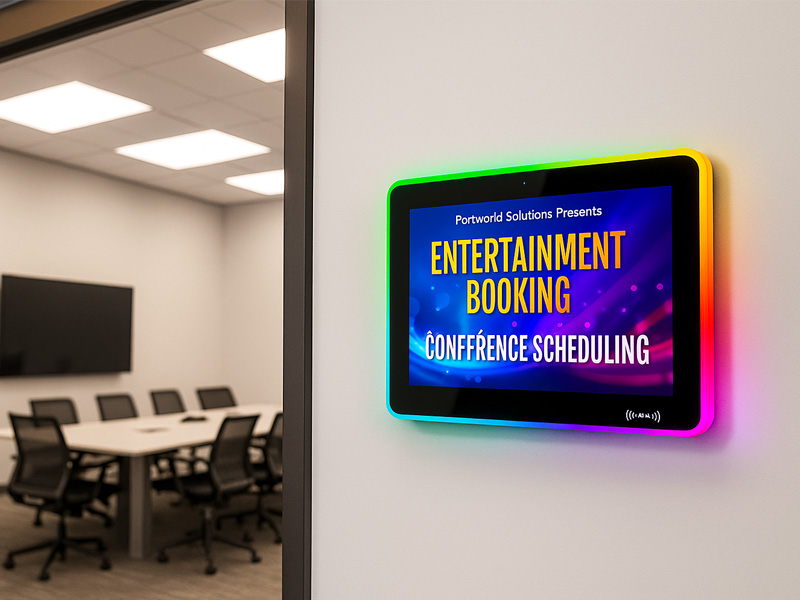
YC-LE156
15.6″ Meeting Room Display Panels
2. Choose the Right Screen Size
Screen size should match the viewing distance and the amount of information being displayed. A small screen may work well outside a classroom, while a large display is more suitable for a main lobby or cafeteria.
| Location | Suggested Display Size | Typical Use |
|---|---|---|
| Classroom entrance | 10–15.6 inches | Room schedules and notices |
| Library or office | 15.6–21.5 inches | Information and announcements |
| Hallway | 21.5–43 inches | News and campus updates |
| Reception and lobby | 32–55 inches | Welcome messages and directories |
| Cafeteria or gymnasium | 43–55 inches or larger | Menus and event information |
These recommendations are intended for planning, not as strict standards. The ideal size depends on viewing distance, available wall space, content design, and the expected audience.
For instance, people often view hallway displays as they walk by, so they should feature large text, easy-to-see images, and concise messages. Reception displays may need to be viewed from farther away, making a larger screen helpful for reading directions and announcements.
Schools should also consider whether portrait or landscape orientation is most suitable. Landscape displays are well suited to announcements and video, while portrait screens can work well for directories, schedules, and menus.
3. Evaluate Brightness and Lighting Conditions
Display brightness has a direct impact on visibility. A screen that appears clear in a showroom may be hard to read when placed near large windows or in areas with intense indoor lighting.
Standard commercial displays are generally bright enough for most school interiors. Areas exposed to strong natural light, however, may need brighter models with improved glare control.
Key factors to assess include:
- Reception areas: Determine whether sunlight enters through windows or glass doors.
- Hallways: Account for reflections from overhead lights and polished surfaces.
- Cafeterias: Assess the ambient light and the distance between the screens and their viewers.
- Covered outdoor areas: Choose displays suited to the specific lighting, temperature, and environmental conditions.
Avoid choosing brightness solely on the basis of the highest available specification. Excessive brightness can be uncomfortable in dimmer rooms. Adjustable settings allow schools to accommodate changing light conditions.
Anti-glare finishes and thoughtful screen placement can further improve readability. Accessibility guidance also advises minimizing reflections, maintaining strong contrast between text and background, and giving viewers sufficient time to read the information displayed.
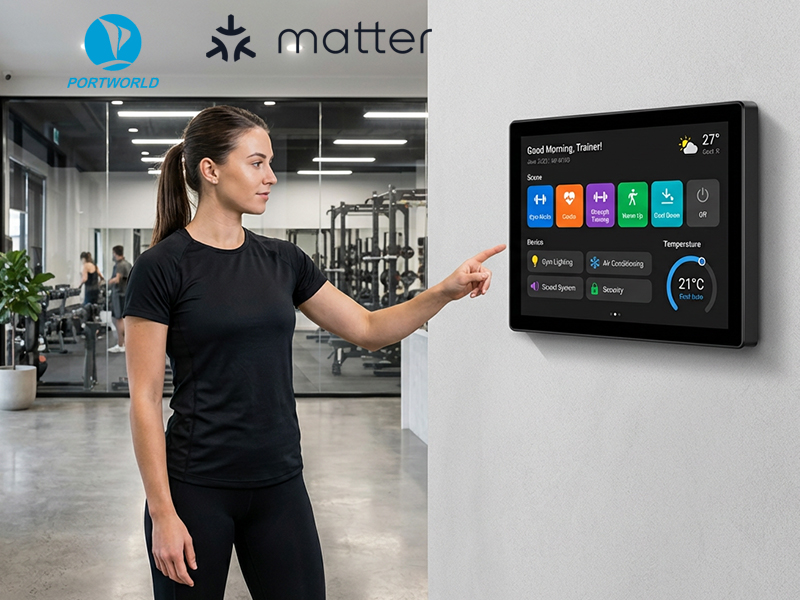
smart home control panel
4. Plan Where Displays Will Go Across Campus
Strategic placement helps digital signage reach the people it is intended for. Schools should take into account foot traffic, viewing angles, nearby activities, and how long people typically spend in each location.
Main Entrance and Reception
Visitors often look for information as soon as they arrive. A display in this area can feature welcome messages, campus maps, visitor instructions, and key announcements.
Place the screen where visitors can see it shortly after entering. Keep it clear of doors, furniture, and other obstructions. For interactive directories, provide sufficient space for wheelchair users to approach and use the screen.
Hallways and Corridors
Hallways work well for brief announcements, event reminders, and school news. However, students moving between classes may only glance at a display for a few seconds.
Install screens at prominent points along well-used routes, such as corridor intersections or shared areas. Avoid spots where students might congregate and obstruct the flow of traffic.
Keep messages concise and layouts simple instead of using dense paragraphs. If the screen rotates through multiple messages, leave enough time for viewers to read and understand each one.
Cafeterias
Cafeterias are well suited to digital menu boards. Screens can display the day’s meals, prices, food details, and schedule changes.
Install screens where students can easily view them as they approach the serving area or queue. In larger dining spaces, several displays may be more effective than a single screen positioned in a far corner.
Libraries and Learning Areas
Libraries are generally quieter, with visitors likely to view information for longer periods. Digital signage can share opening hours, available resources, upcoming events, and room availability.
With appropriate software, interactive displays can also help users search directories or find resources.
Gymnasiums and Sports Facilities
Sports facilities often involve longer viewing distances and more activity. Larger screens may be necessary to show schedules, scores, and event announcements clearly.
Use secure mounting, protected cable routing, and appropriate display enclosures. Ensure that screens do not obstruct sporting activities, emergency exits, or pedestrian routes.
5. Check Accessibility and Installation Safety
School digital signage should be accessible to students, staff, parents, and visitors with a range of physical and visual needs.
For public information displays, consider the following:
- Choose legible sans-serif fonts and high-contrast colors.
- Avoid small text and overly complex layouts.
- Leave important information on screen long enough for viewers to read it.
- Include captions on videos that contain spoken information.
- Avoid flashing effects and unnecessarily rapid transitions.
- Offer accessible alternatives for essential information.
- Place interactive controls within a suitable reach range.
Set the installation height according to the display’s users and purpose. A hallway announcement screen may be mounted higher for visibility, while an interactive directory should remain accessible to wheelchair users and people of different heights.
Schools should also use secure wall mounts, conceal or protect cables, and apply tamper-resistant installation methods where appropriate. In busy corridors and public areas, choose mounting structures suited to the building conditions and the expected degree of physical contact.
Digital signage should not replace official emergency notification systems. Critical alerts should continue to be delivered through the school’s designated emergency communication channels.
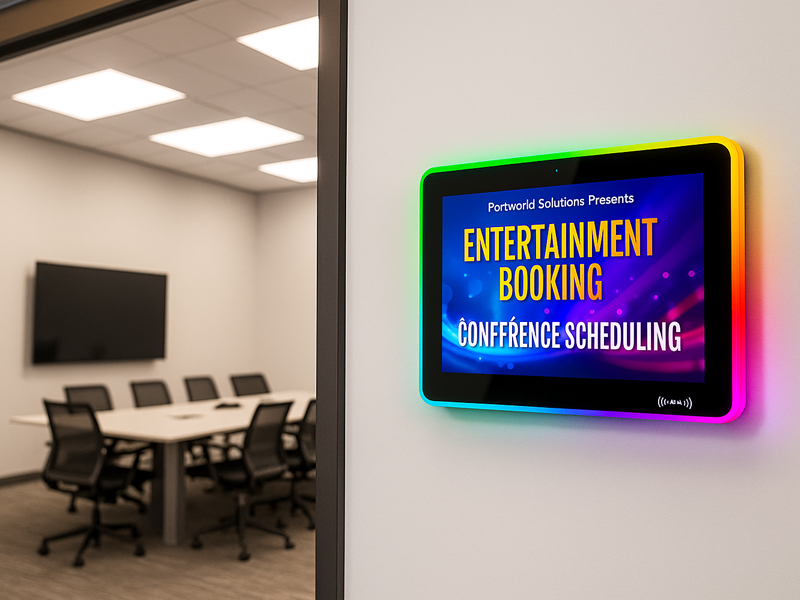
meeting digital signage display-1
6. Choose Suitable Hardware and Connectivity
A school display system involves more than an LCD panel. Its hardware platform, operating system, network connection, and content management software all affect how easily screens can be installed and maintained.
Operating system: Android works well for many dedicated signage applications and customized interfaces. Windows may be a better choice when a school needs to use existing Windows-based software. Linux is another option for embedded projects with particular software or system requirements.
Connectivity: Wi-Fi can make installation easier in areas where running network cables is difficult. Ethernet offers a wired connection for locations that need more predictable network access. Power over Ethernet (PoE) can provide power and network connectivity through one compatible Ethernet cable, reducing installation complexity.
Remote management: The right content management system can enable administrators to update announcements, schedule content, and manage multiple screens from a central location. Available features vary according to the software platform and its integration capabilities.
Hardware reliability: School displays may run for many hours each day. When choosing commercial hardware, consider the expected operating schedule, cooling design, power supply, mounting structure, and ease of maintenance.
7. Partner with a Display Manufacturer for Custom Requirements
School projects vary in their display needs. Some installations call for compact screens outside classrooms, while others require larger advertising players, interactive displays, or tailored embedded systems.
Portworld supplies commercial display hardware and embedded computing solutions for digital signage projects. Its portfolio includes advertising players, touchscreen displays, and Rockchip-based motherboard platforms.
For school and campus applications, Portworld can accommodate OEM/ODM requirements, including:
- Custom display sizes and touchscreen configurations.
- Android and Linux system customization.
- Mainboard and PCBA design.
- Wi-Fi, Ethernet, PoE, USB, and serial interface options, depending on the platform selected.
- Preinstalled applications and automatic startup.
- Customized enclosures, logos, and packaging.
- SDKs and technical documentation for supported hardware configurations.
These capabilities help system integrators and education technology providers create displays tailored to specific installation environments and software requirements.
Successful school digital signage projects begin with the right combination of display selection and placement. Schools should identify the purpose of each screen, match its size and brightness to the environment, and consider viewing distance, accessibility, safety, and network connectivity.