Debian/Ubuntu kiosk mode for smart home dashboard
As smart homes become increasingly popular, the need for a centralized dashboard to manage various smart devices is more crucial than ever. Whether you want to control your lighting, security systems, or HVAC, a dedicated smart home dashboard is the best way to keep everything in one place. But how do you ensure the interface remains secure, efficient, and user-friendly for everyday use? Enter Debian/Ubuntu kiosk mode.
In this article, we will explore how Debian/Ubuntu kiosk mode can be used to create an interactive and secure smart home dashboard that is simple to maintain and enhances the user experience.
What is Kiosk Mode?
Kiosk mode refers to a restricted interface where the device can only access a specific app or website, blocking access to any unnecessary settings or features. It’s widely used for public-facing displays or information terminals, ensuring that the device is focused on a single function.
In the context of a smart home dashboard, kiosk mode ensures that your Debian or Ubuntu-based system is dedicated solely to managing your smart home environment, preventing any accidental changes to system settings or unauthorized access to sensitive information.
Why Use Debian/Ubuntu Kiosk Mode for a Smart Home Dashboard?
1. Enhanced Security
One of the major benefits of using Debian/Ubuntu kiosk mode for your smart home dashboard is the security it offers. By locking the system into a single application or web interface, you effectively prevent unauthorized access to other parts of the operating system. This makes it incredibly difficult for malicious users to tamper with your smart home system, especially when the device is installed in public spaces or shared areas.
Key security features include:
- Prevents access to system settings: Only the smart home dashboard interface will be accessible.
- No app switching: Users are locked into the dashboard interface, ensuring that they can only interact with the intended app or website.
- Automatic restart: If the kiosk encounters any issues, it can be automatically rebooted to restore the dashboard without user intervention.
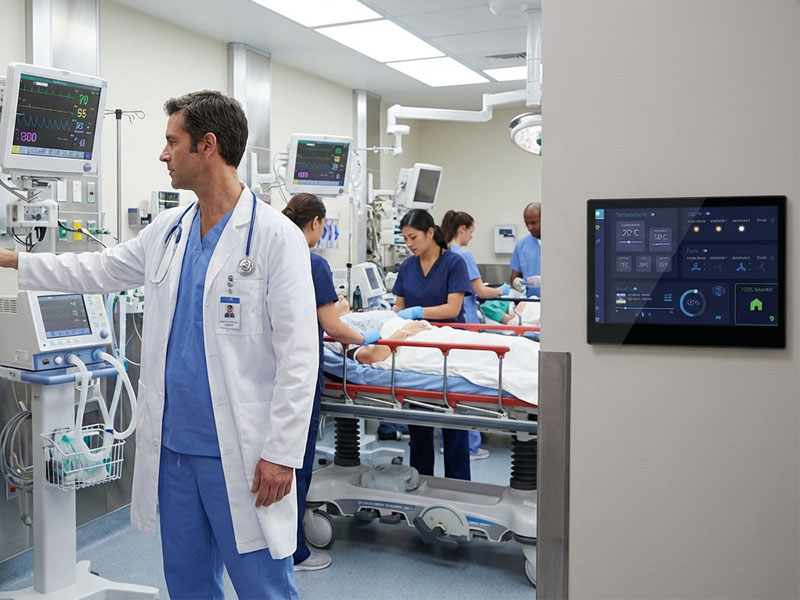
smart control panel
2. Streamlined User Experience
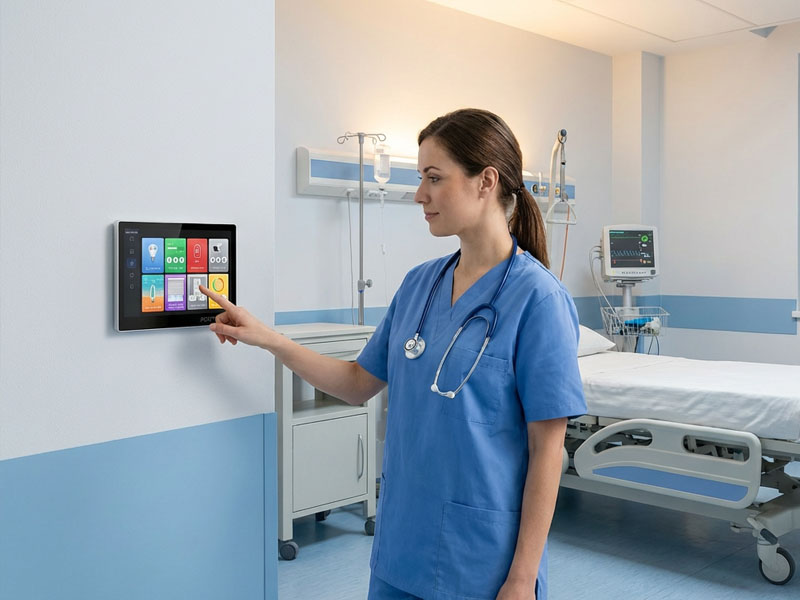
Kiosk mode simplifies the user experience by providing a dedicated interface for your smart home control. Whether you’re using a tablet or a wall-mounted panel, users are only shown the dashboard for controlling smart devices, such as lights, cameras, thermostats, and locks.
With kiosk mode:
- Users can easily control smart devices from one location, using either touch gestures, voice commands, or button presses.
- There are no distractions from other apps, making it easy to navigate and perform tasks without clutter or confusion.
Additionally, you can create a custom user interface (UI) tailored to your preferences, showcasing only the most important controls, such as:
- Lighting control
- Climate control
- Security monitoring
- Energy consumption tracking
- Scenes and automation (e.g., “Good morning” or “Good night”)
This makes the smart home dashboard incredibly intuitive, even for users who are not familiar with the technology.
3. Customizable Interface for Smart Home Needs
Using Debian/Ubuntu kiosk mode also means you can create a completely customizable interface that fits your specific needs. You can choose to display a simple grid of buttons, a live feed from your security cameras, or detailed real-time data from your smart appliances.
For example, using Home Assistant or openHAB as your smart home platform, you can set up your smart home dashboard with the following features:
- Automated control of lights, thermostats, and blinds.
- Live camera feeds for security monitoring.
- Voice control integration using Google Assistant or Amazon Alexa.
- Real-time data on energy usage, temperature, and humidity.
With Debian/Ubuntu kiosk mode, the system becomes dedicated solely to this dashboard and nothing else. This is particularly helpful for homes or businesses where only certain users need to interact with the smart home system, ensuring that the interface remains simple and focused.
smart control panels-1
4. Cost-Effective Solution for Smart Home Dashboards
Setting up a smart home dashboard doesn’t need to break the bank. By using Debian or Ubuntu, which are both free, open-source operating systems, you can set up an inexpensive smart control system on almost any compatible hardware, such as Raspberry Pi, Intel NUC, or wall-mounted tablets. This creates a cost-effective solution for your smart home.
5. Easy Maintenance and Updates
Both Debian and Ubuntu are well-known for their stability and reliability, ensuring that your kiosk system remains up and running. Maintenance and updates are straightforward, as the operating systems are compatible with most software packages and have easy-to-use package management tools.
You can update the system and the app interface remotely, ensuring that your smart home dashboard stays up-to-date with the latest features and security patches.
Setting Up Debian/Ubuntu Kiosk Mode for Your Smart Home Dashboard
Setting up a Debian/Ubuntu kiosk mode system for your smart home dashboard is relatively straightforward, and it can be done on a variety of devices. Here’s an overview of how you can set up kiosk mode on a 4-inch wall-mounted Android control panel like Portworld’s YC-SM41P or any Raspberry Pi-based device.
1. Install Debian or Ubuntu
First, install Debian or Ubuntu on your device. If you’re using a Raspberry Pi, you can download Raspberry Pi OS, which is a version of Debian optimized for the Pi. For Intel-based systems, you can use Ubuntu Server or Ubuntu Desktop.
2. Set Up Kiosk Mode
Once the system is installed:
- Install the browser or app that will be used to display the smart home dashboard. For example, you can install Chromium for web-based dashboards or use Home Assistant directly on the system.
- Configure the kiosk mode settings:
- For Chromium, use
--kioskmode to automatically launch the dashboard in full-screen and lock it to the app or webpage. - For Home Assistant or other smart home software, set it up to run on boot and auto-launch the dashboard interface.
- Lock down the interface: Ensure that the system is locked to the app by preventing access to other system functions or the terminal.
- Set up auto-reboot: In case of a system crash or error, you can configure the system to automatically reboot to the dashboard.
Meeting Room Display Panels
3. Secure the System
Ensure that your system is protected by setting up firewall rules and using strong passwords for all accounts. Only the smart home dashboard app or website should be accessible, with no access to the underlying operating system or files.
4. Integrate with Smart Home Devices
Once the system is set up, integrate it with your smart home devices, such as lighting systems, thermostats, locks, and security cameras. Customize the UI to show only the essential controls, providing a simple, focused experience.
Portworld’s Smart Control Panels for Debian/Ubuntu Kiosk Mode
Portworld’s smart control panels, such as the YC-SM10P and YC-SM41P, are ideal for running Debian/Ubuntu kiosk mode. These Android-based panels feature high-resolution touchscreens that are perfect for displaying your smart home dashboard. They support Wi-Fi, Bluetooth, and PoE, ensuring seamless integration with all your smart devices.
Key features of Portworld’s panels include:
- Android OS: Run your preferred smart home dashboard apps with ease.
- Touchscreen Interface: Effortlessly interact with your devices through intuitive touch gestures.
- Customizable UI: Tailor the interface to suit your needs and preferences.
- Robust Connectivity: Easily integrate with smart home ecosystems like Home Assistant, Google Home, and Amazon Alexa.
- Kiosk Mode Compatibility: Set up your control panel to run kiosk mode and provide a dedicated, secure control interface.
Streamlined Smart Home Control Panel with Debian/Ubuntu Kiosk Mode
Setting up a Debian/Ubuntu kiosk mode system for your smart home dashboard offers a simple, secure, and customizable solution for managing your smart devices. Whether you’re using a tablet, Raspberry Pi, or Portworld’s smart control panels, the kiosk mode ensures that the device remains dedicated to the task at hand, providing a seamless user experience.
By utilizing Debian/Ubuntu‘s power and kiosk mode functionality, you create a centralized and secure control hub that keeps all of your smart devices at your fingertips, all while minimizing distractions and unauthorized access.